
1. What You Need to Prepare
Step 1: An active WIPERAPP account with valid licenses
Step 2: The email address of the person you want to share licenses with
Important:
- Check that your account and licenses are active. If your account is inactive, please contact our customer support team.
2. Add a User to Your Group
Step 1: Make sure the person you’re sharing with has a WIPERAPP account. If they don’t have one yet, they can create it at: www.panel.wiperapp.com/register
You can find out how to do this at: www.wiperapp.com/docs/wiki/getting-started/registration/
Step 2: Go to www.panel.wiperapp.com and log in with your account (the one that has the licenses)
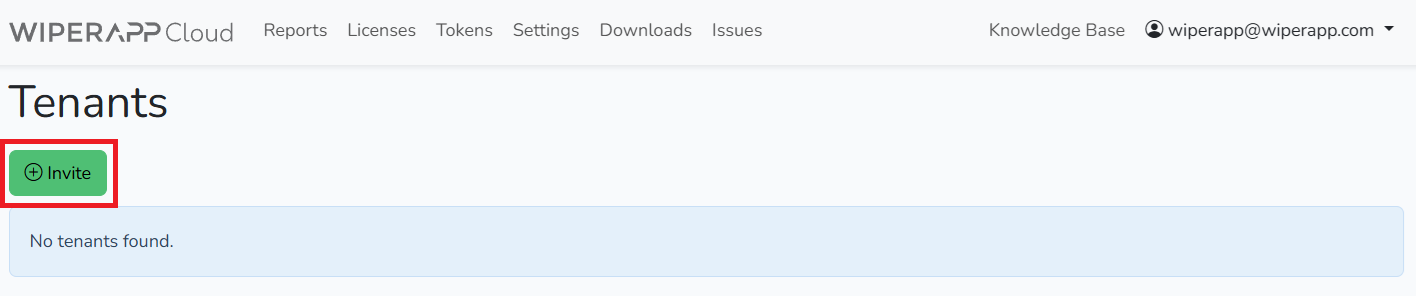
Step 3: Click on your email address in the top right corner (next to “Knowledge Base”), then select “Tenants” from the menu

Step 4: Click the “Invite” buton
Step 5: Enter the email address of the person you want to share licenses with, then click “Send invitation”
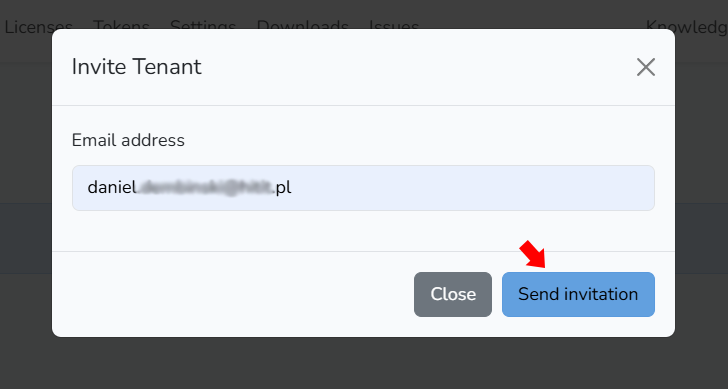
The person will receive a confirmation email about joining your group.
3. Share Licenses with a User
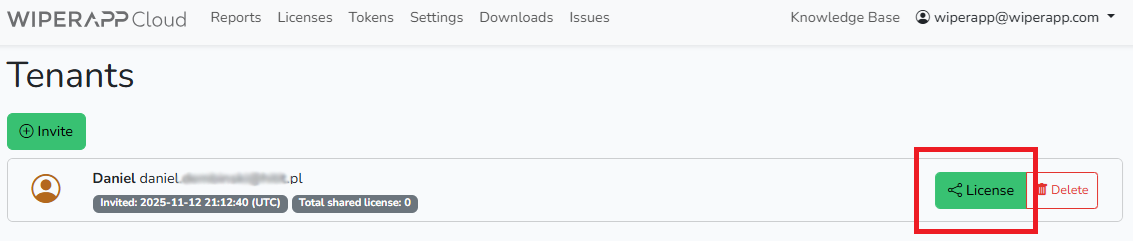
Step 1: In the user list, click the “License” button next to the user’s name
Step 2: Use the small dropdown arrow to select which license package you want to share from, then enter the number of licenses you want to share and click “Share licence”
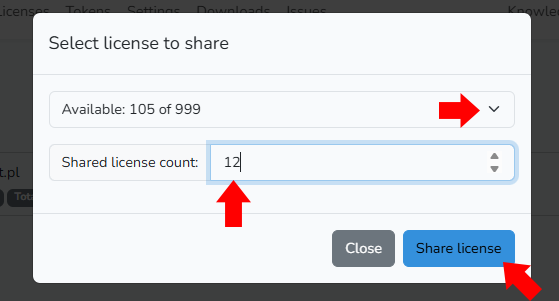
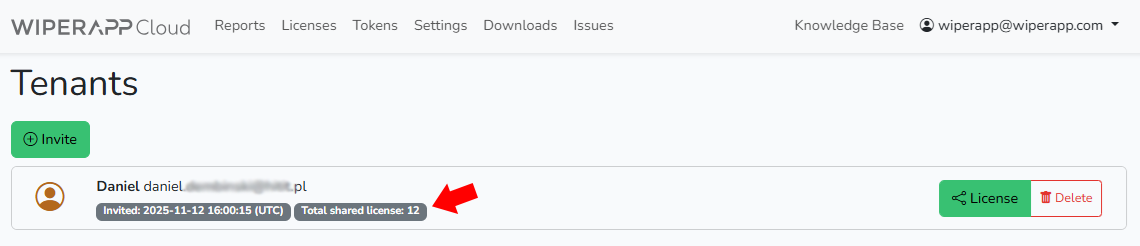
Step 3: You’ll see the number of shared licenses displayed next to the user’s join date
4. Activate Shared Licenses (For the Recipient)
Step 1: Log in to the account that received the shared licenses
Step 2: Go to the “Licenses” tab and check that you have licenses marked as “SHARED” and “Active”. Click the “Select license” icon to activate the shared licenses

5. Verify Everything Works
Once activated correctly, you should see your licenses listed and ready to use.

Important:
- After creating a new user account, remember to create and copy/scan the token to a bootable USB drive so WIPERAPP can properly identify users.